Slack Integration
If you use Slack as your internal communication channel, you can easily integrate our FollowitBot to your Slack environment. This will allow Followit to deliver notifications & alerts directly to your users through a private channel. Thanks to FollowitBot all users will receive real-time information on new and updated cases within their Followit environment. After the integration process within your company’s environment is completed, each user will be able to activate notifications in slack independently.
To add Slack to your Followit environment :
1. Navigate to Administration > General.
2. On the System Settings tab, navigate to the “Enable Slack Communications” panel.
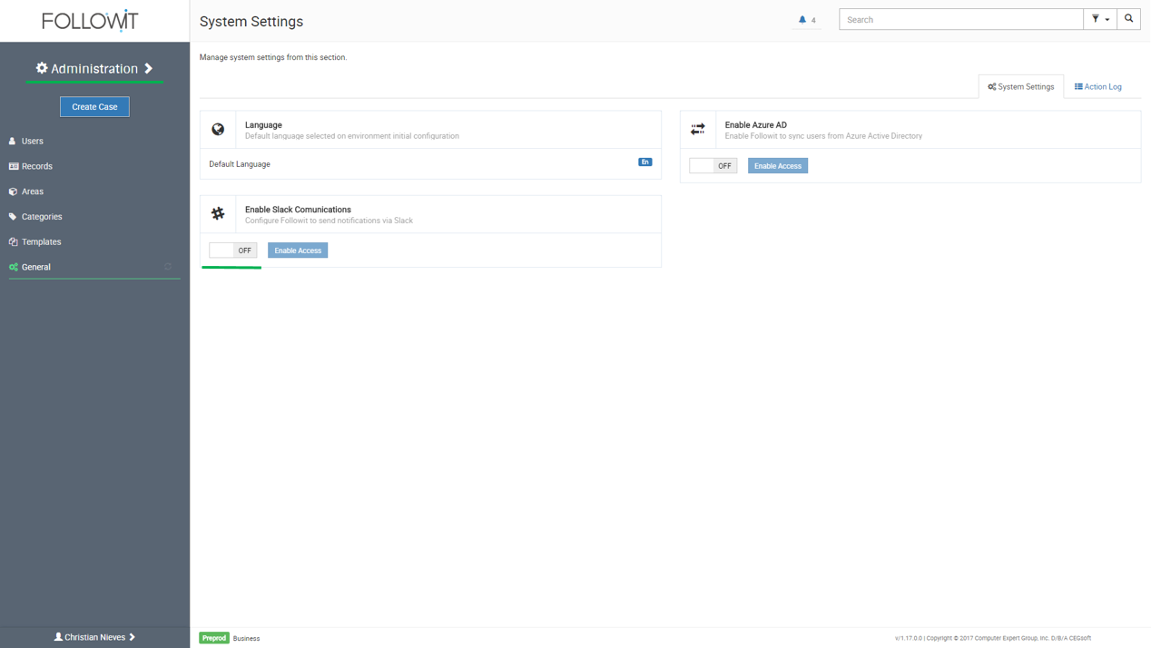
3. Press the switch button to Enable the Grant Authorization for Slack Integration.
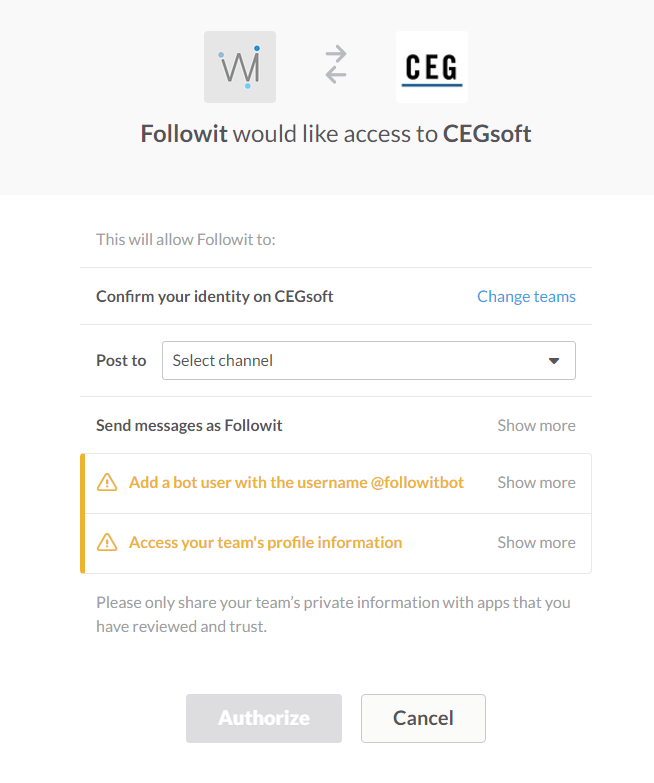
4. After the switch is “On”, press the “Enable Slack” button which will redirect you to the Slack Authorization Page. Here you will need to configure the following:
– Select the Post to channel from the dropdown where you need to specify where general, non user-specific, messages will be posted.
– The Send messages as setting indicates that all messages sent by your Followit environment to your Slack channel will read sent by Followit.
Note: Both warning messages are informative, letting you know that in order for the integration to complete successfully, a Bot user with the name @followitbot will be created and that Followit will be able to access your profile’s information.
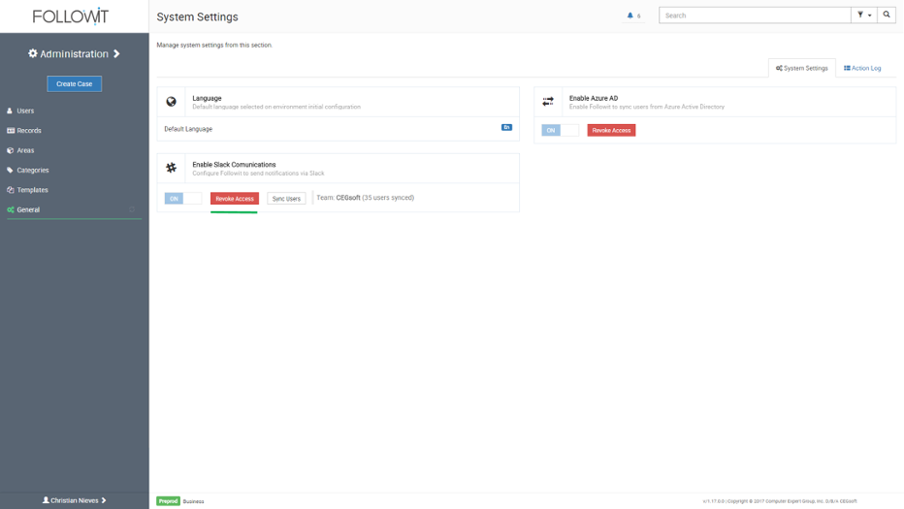
5. Once you Authorize access, you will be redirected back to the Followit System Settings area, where you know will see additional information like:
– Revoke Access: Used to remove Followit access to Slack (more information on how to revoke access ahead).
– Sync Users: Used to sync Followit Users with Slack users.
– Synced Users Counter: Number or users matched between your Followit & Slack environments.
Note: You will need to re-sync everytime a new user is created both in Followit and/or in Slack. Followit will not sync new users automatically.
At this point the application is ready to send notifications directly to slack users via the @followitbot. ALL USERS MUST ENABLE SLACK NOTIFICATIONS ON THEIR USER SETTINGS SECTION TO RECEIVE FOLLOWIT NOTIFICATIONS IN THEIR SLACK.
Revoke Slack Access
To revoke access from Slack in Followit, follow these steps:
1. Navigate to Administration > General.
2. On the System Settings tab, navigate to the “Enable Slack Communications” panel and click on the “Revoke Access” button.
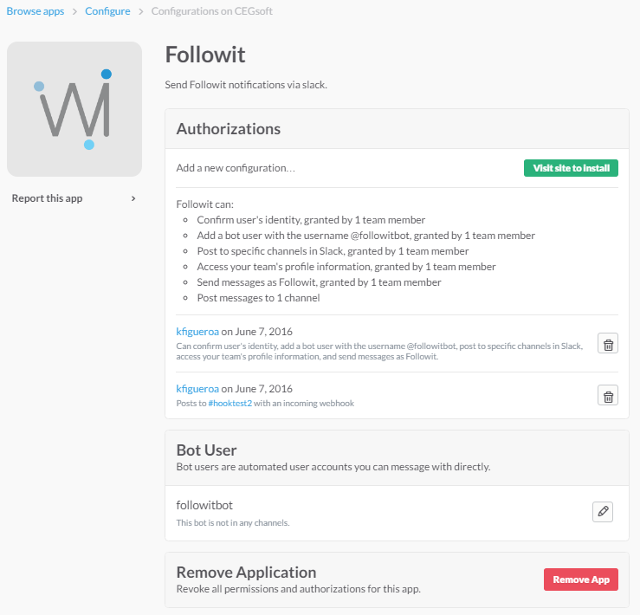
3. You will be redirected to your Slack Directory where the Followit Slack App Configuration page will be displayed. Click on Remove App to remove Followit’s Slack integration.
Once removed, Followit will no longer have access to Slack’s information nor be able to write or read slack messages. If you need further assistance with the Slack integration, contact us at [email protected].